Construction Estimating Using Excel 2nd Edition: A Practical Guide for Accurate Project Cost Estimation
Introduction
Construction estimating is one of the most important activities in the planning and management of a building project. Before a contractor submits a bid or an owner approves a project budget, someone must determine how much the work is likely to cost.
A good estimate does much more than add material prices together. It combines quantities, labor, equipment, subcontractors, overhead, waste, productivity, contingencies, and project-specific conditions into a structured financial model.
For students, junior estimators, engineers, contractors, and project managers, Microsoft Excel remains one of the most practical tools for learning and performing construction estimating. Excel is flexible, widely available, and capable of handling everything from a small residential estimate to a detailed commercial construction cost plan.


The real advantage of Excel is not simply its spreadsheet format. It is the ability to connect quantities, unit costs, labor rates, waste allowances, subcontractor prices, and markups so that a change in one value can automatically update the overall estimate. 📊🏗️
This article explains a practical approach to construction estimating using Excel, from basic theory and definitions to real-world applications, case studies, comparison tables, and professional estimating tips.
Background Theory
Construction estimating is based on the principle that a project can be divided into measurable components.
A building may contain:
- Site preparation
- Excavation
- Foundations
- Structural concrete
- Reinforcement
- Masonry
- Roofing
- Doors and windows
- Finishes
- Mechanical systems
- Electrical systems
- Plumbing
- External works
Each component can then be divided into smaller activities.
For example, concrete work could include:
- Footings
- Columns
- Beams
- Slabs
- Walls
- Stairs
The estimator determines the quantity associated with each activity and assigns an appropriate cost.
Quantity × Unit Cost
A fundamental estimating concept is the relationship between quantity and unit cost.
For example, if a project requires a particular quantity of concrete and the current installed cost per unit is known, Excel can calculate the corresponding cost automatically.
The same concept can be applied to:
- Concrete
- Steel reinforcement
- Blocks
- Bricks
- Paint
- Flooring
- Labor
- Equipment
- Excavation
Excel makes this process particularly useful because quantities and prices can be stored separately.
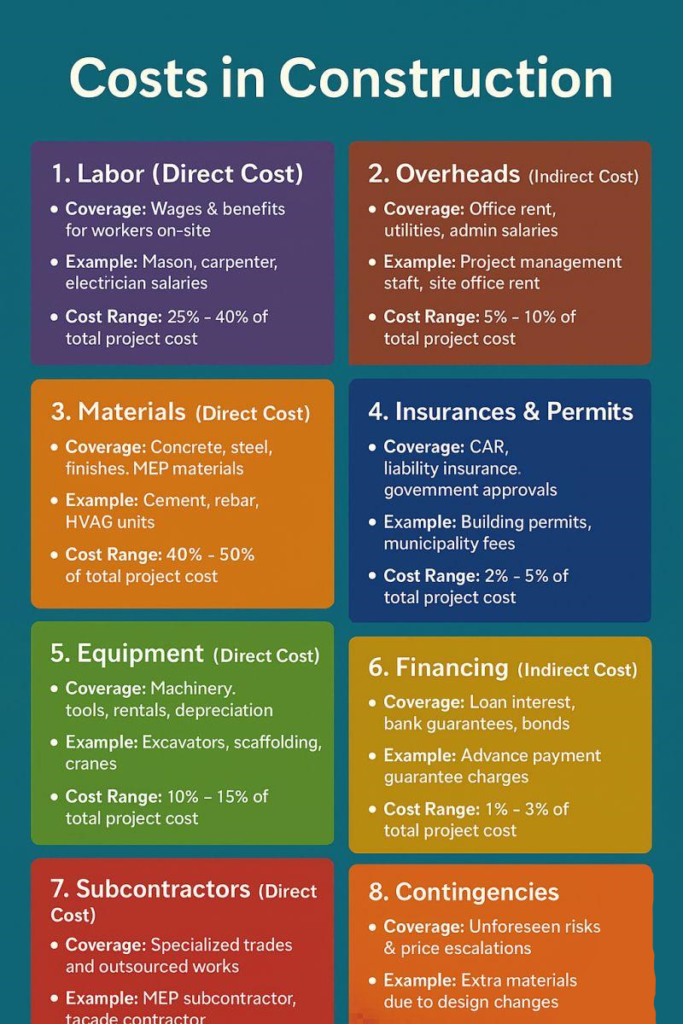
Direct and Indirect Costs
Construction costs are commonly divided into direct and indirect categories.
Direct costs are directly associated with physical construction activities.
Examples include:
- Materials
- Labor
- Equipment
- Subcontractor work
Indirect costs support the project but may not be associated with one specific construction activity.
Examples include:
- Site office
- Temporary facilities
- Project supervision
- Insurance
- Permits
- Safety management
- Administration
A professional estimate should consider both categories.
Definition
Construction estimating using Excel is the process of calculating expected construction quantities, costs, labor requirements, equipment expenses, overhead, contingencies, and other financial components using Microsoft Excel.
A basic estimating workbook can contain columns such as:
| Item | Description | Quantity | Unit | Material | Labor | Equipment | Total |
|---|---|---|---|---|---|---|---|
| 1 | Excavation | 250 | m³ | $0 | $2,500 | $1,500 | $4,000 |
| 2 | Concrete | 180 | m³ | $18,000 | $9,000 | $2,700 | $29,700 |
| 3 | Blockwork | 600 | m² | $7,800 | $6,000 | $500 | $14,300 |
| 4 | Flooring | 450 | m² | $13,500 | $7,200 | $0 | $20,700 |
The actual prices will vary significantly by country, location, specification, labor market, project conditions, and date.
Why Excel Is Useful
Excel provides several features that make it suitable for estimating:
- Formulas
- Tables
- Filters
- Sorting
- Conditional formatting
- Data validation
- Pivot tables
- Charts
- Lookup functions
- Cost databases
- Scenario analysis
A well-designed workbook can therefore become a small estimating system rather than merely a collection of numbers.
Step-by-Step Construction Estimating Using Excel
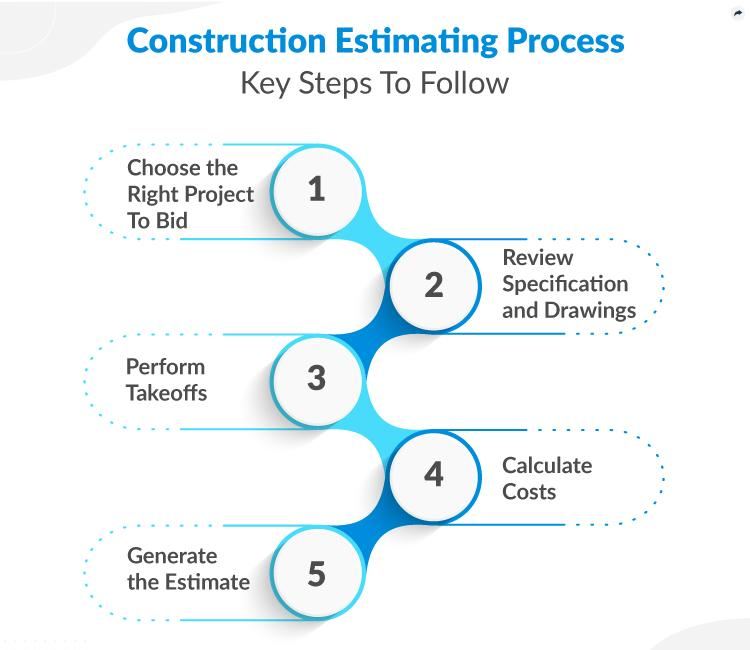
The following workflow can be adapted to residential, commercial, industrial, civil, and infrastructure projects.
Step 1: Review the Project Documents
Before opening Excel, study the available project information.
Review:
- Architectural drawings
- Structural drawings
- Mechanical drawings
- Electrical drawings
- Specifications
- Schedules
- Site information
- Tender instructions
- Contract conditions
Do not begin estimating simply because a drawing package has arrived.
The estimator must first understand what is included and what is excluded.
Step 2: Create an Excel Workbook Structure
A professional workbook should not place everything on one giant worksheet.
A useful structure might include:
Sheet 1 — Project Information
Contains:
- Project name
- Client
- Location
- Estimator
- Revision
- Estimate date
Sheet 2 — Material Prices
Contains current material costs.
Sheet 3 — Labor Rates
Contains labor categories and rates.
Sheet 4 — Quantity Takeoff
Contains measured quantities.
Sheet 5 — Detailed Estimate
Combines quantities and costs.
Sheet 6 — Subcontractors
Contains quotations from specialist contractors.
Sheet 7 — Summary
Presents the final project cost.
This organization makes the workbook easier to review and update.
Step 3: Perform Quantity Takeoff
Quantity takeoff is the process of determining how much work is required.
Typical units include:
- m
- m²
- m³
- kg
- tonnes
- each
- hours
- lump sum
For example, flooring might be measured in square meters, while concrete is commonly measured in cubic meters.


Record the source of each quantity whenever possible.
For example:
| Item | Description | Quantity | Unit | Drawing Reference |
|---|---|---|---|---|
| 01 | Floor concrete | 180 | m³ | S-201 |
| 02 | Reinforcement | 22,000 | kg | S-202 |
| 03 | Internal walls | 650 | m² | A-301 |
This provides traceability when someone reviews the estimate.
Step 4: Build a Cost Database
Create a separate price database.
For example:
| Material | Unit | Current Price | Supplier | Date |
|---|---|---|---|---|
| Ready-mix concrete | m³ | $120 | Supplier A | Aug 2026 |
| Reinforcement steel | tonne | $850 | Supplier B | Aug 2026 |
| Blocks | each | $1.20 | Supplier C | Aug 2026 |
The date is important because construction prices change.
An estimate prepared using outdated prices can look mathematically perfect while being commercially inaccurate.
Step 5: Add Labor Costs
Labor should be considered according to the work activity.
Different trades have different productivity rates and hourly costs.
Potential categories include:
- General laborers
- Carpenters
- Masons
- Steel fixers
- Electricians
- Plumbers
- Painters
- Equipment operators
The estimator should distinguish between basic wage and the actual project labor burden when appropriate.
The labor burden may include:
- Payroll costs
- Benefits
- Insurance
- Taxes
- Allowances
- Other employment costs
Step 6: Add Equipment
Some construction activities require equipment.
Examples include:
- Excavators
- Cranes
- Loaders
- Rollers
- Concrete pumps
- Generators
- Scaffolding systems
Equipment costs may be based on ownership, rental, operating hours, fuel, maintenance, or subcontractor pricing.
Step 7: Include Waste and Allowances
Materials rarely arrive at a project with zero losses.
Waste may result from:
- Cutting
- Damage
- Transportation
- Storage
- Handling
- Installation
- Design changes
However, waste should not be added blindly.
Different materials and construction methods require different assumptions.
Step 8: Include Subcontractor Quotations
Some scopes are better estimated through specialist quotations.
Examples include:
- HVAC
- Fire protection
- Elevators
- Curtain walls
- Specialized glazing
- Security systems
Create a dedicated Excel sheet to compare subcontractor proposals.
| Scope | Contractor A | Contractor B | Contractor C | Selected |
|---|---|---|---|---|
| HVAC | $95,000 | $91,000 | $102,000 | B |
| Electrical | $130,000 | $126,000 | $135,000 | B |
| Fire protection | $48,000 | $52,000 | $46,000 | C |
The cheapest quotation is not automatically the best choice.
Scope coverage must be checked carefully.
Comparison: Excel vs Other Estimating Methods
Excel is powerful, but it is not the only estimating solution.
| Feature | Excel | Dedicated Estimating Software | Manual Paper |
|---|---|---|---|
| Flexibility | Excellent | Good | Low |
| Initial cost | Low | Medium/High | Low |
| Automation | Excellent | Excellent | Very Low |
| Collaboration | Good | Excellent | Poor |
| Custom formulas | Excellent | Depends on software | Very Low |
| Learning curve | Moderate | Moderate/High | Low |
| Large project management | Moderate | Excellent | Poor |
| Error control | Depends on design | Strong | Weak |
When Excel Is the Better Choice
Excel is especially useful when:
- Learning construction estimating
- Developing small and medium estimates
- Creating custom estimating templates
- Testing different scenarios
- Comparing supplier prices
- Building a project-specific cost model
When Dedicated Software May Be Better
Large contractors may require specialized software when they need:
- Multi-user estimating
- Centralized cost databases
- Advanced audit trails
- Integrated bidding
- Historical project analysis
- Enterprise-level permissions
The best tool depends on project complexity.
Diagrams and Estimating Workbook Structure
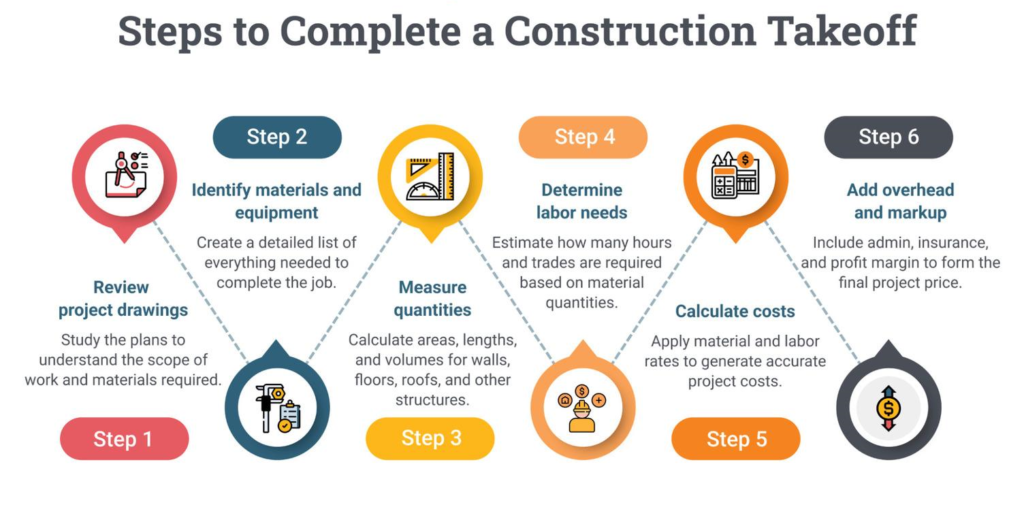
A simple estimating workflow can be visualized as:
Drawings → Quantity Takeoff → Cost Database → Labor & Equipment → Detailed Estimate → Overhead → Contingency → Final Bid
Another useful structure is:
PROJECT
   │
   ├── Drawings
   │
   ├── Specifications
   │
   ├── Quantity Takeoff
   │       │
   │       ├── Materials
   │       ├── Labor
   │       └── Equipment
   │
   ├── Subcontractor Quotes
   │
   ├── Direct Costs
   │
   ├── Indirect Costs
   │
   ├── Contingency
   │
   └── Final Estimate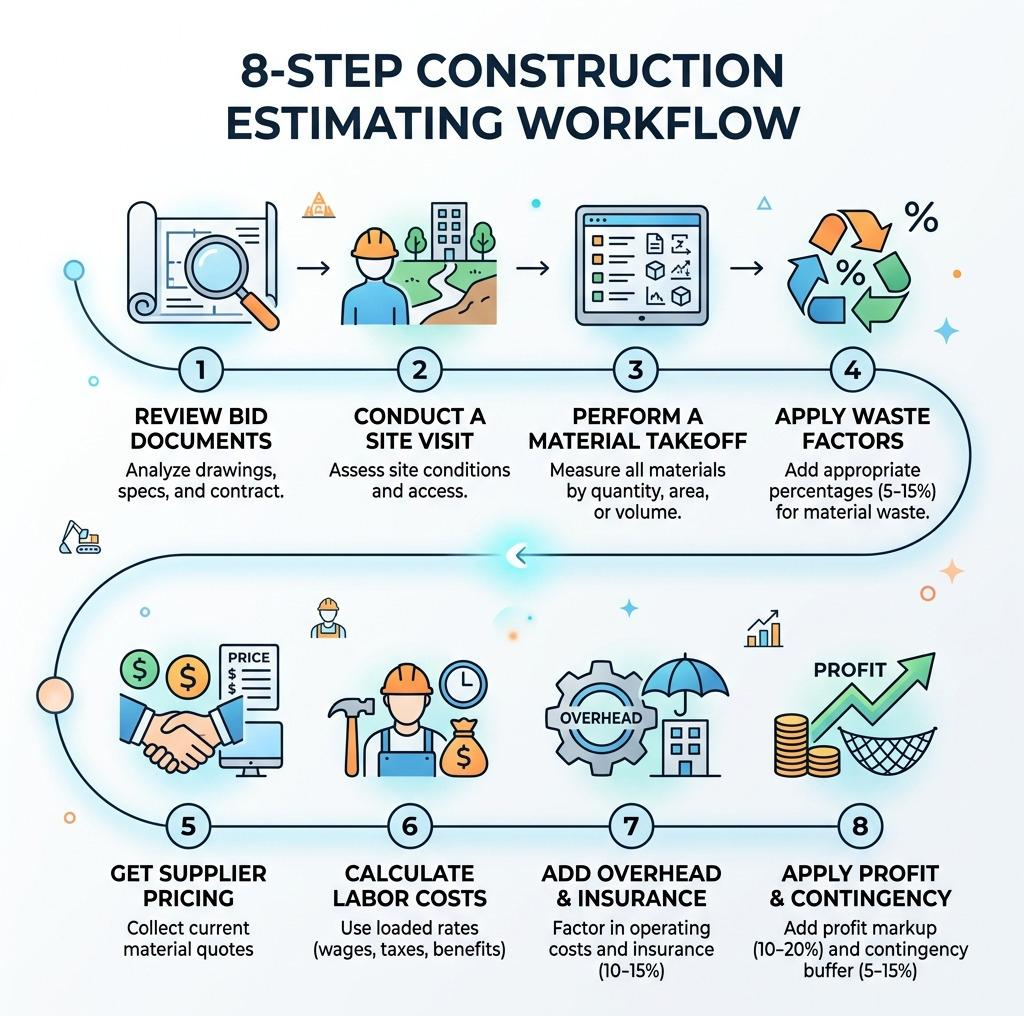


Recommended Excel Columns
A detailed estimate can use:
| Item | Cost Code | Description | Qty | Unit | Material | Labor | Equipment | Subcontract | Total |
|---|---|---|---|---|---|---|---|---|---|
| 001 | CON-01 | Concrete | 180 | m³ | $21,600 | $9,000 | $2,700 | $0 | $33,300 |
| 002 | STL-01 | Reinforcement | 22 | t | $18,700 | $6,000 | $1,000 | $0 | $25,700 |
| 003 | MAS-01 | Blockwork | 650 | m² | $8,450 | $6,500 | $400 | $0 | $15,350 |
This format allows costs to be filtered by trade or cost category.
Examples
Example 1: Residential Building
Imagine a small residential project containing:
- Foundation
- Concrete frame
- Masonry walls
- Roof
- Doors and windows
- Flooring
- Painting
- Electrical work
- Plumbing
The estimator can create one line for each major activity.
Instead of typing the total project cost manually, Excel should calculate the activity totals from quantities and cost information.
If the concrete price changes, the relevant activity and project summary should update automatically.
Example 2: Commercial Office
For a commercial office, the estimate might include:
- Structural frame
- Raised flooring
- Suspended ceilings
- HVAC
- Lighting
- Fire protection
- Data systems
- Interior finishes
Here, subcontractor quotations can represent a major part of the estimate.
Excel can compare quotations while maintaining a separate record of inclusions and exclusions.
Example 3: Renovation Project
Renovation estimating is often more difficult because existing conditions are uncertain.
The workbook might include:
- Demolition
- Disposal
- New finishes
- Repairs
- Temporary protection
- Existing-condition allowances
A contingency allowance may be particularly important when hidden conditions are likely.
Real-World Applications
Construction estimating using Excel is applicable across many sectors.
Residential Construction
Home builders can estimate:
- Foundations
- Structural work
- Finishes
- Kitchens
- Bathrooms
- Landscaping
Commercial Construction
Commercial contractors can estimate:
- Office buildings
- Retail spaces
- Hotels
- Restaurants
- Educational facilities
Civil Engineering
Civil estimators can use Excel for:
- Earthworks
- Roads
- Drainage
- Utilities
- Pavements
- Site development
Industrial Construction
Industrial projects may require detailed estimates for:
- Structural steel
- Mechanical equipment
- Piping
- Electrical systems
- Process facilities
Common Mistakes
Using Outdated Prices
Material prices can change quickly.
Solution: Maintain a dated cost database and verify critical prices before submission.
Mixing Units
Entering square meters where cubic meters are required can completely distort an estimate.
Solution: Make the unit column mandatory and use Excel data validation.
Ignoring Drawing Revisions
Estimating from an old drawing can produce significant scope errors.
Solution: Record drawing numbers and revisions.
Double Counting
A quantity can accidentally appear in multiple sections.
Solution: Use cost codes and review the estimate by trade.
Forgetting Indirect Costs
A detailed material takeoff does not automatically represent the complete project cost.
Solution: Include project overhead, supervision, temporary works, insurance, and other applicable indirect costs.
Hard-Coding Numbers
Typing values directly into many formulas makes the workbook difficult to maintain.
Solution: Store important assumptions in dedicated cells or databases.
Challenges & Solutions
| Challenge | Impact | Practical Solution |
|---|---|---|
| Changing material prices | Cost uncertainty | Regular price updates |
| Incomplete drawings | Missing scope | Clarification register |
| Poor quantity takeoff | Incorrect estimate | Independent quantity review |
| Supplier uncertainty | Price variation | Multiple quotations |
| Labor productivity | Cost variation | Historical productivity data |
| Design changes | Rework | Revision tracking |
| Complex subcontracting | Scope gaps | Detailed bid comparison |
| Spreadsheet errors | Financial risk | Formula and workbook audits |
Managing Uncertainty
No estimate is perfectly certain.
A professional estimator should identify uncertainty instead of hiding it.
Examples include:
- Unknown ground conditions
- Preliminary design
- Market volatility
- Long procurement periods
- Incomplete specifications
The objective is to make uncertainty visible and manageable.
Case Study
Consider a hypothetical mid-sized office building.
The estimating team receives architectural and structural drawings together with preliminary mechanical and electrical information.
The team creates an Excel workbook containing:
- Project information
- Drawing register
- Quantity takeoff
- Material database
- Labor database
- Equipment costs
- Subcontractor quotations
- Direct-cost summary
- Indirect-cost summary
- Final estimate
During the first review, the estimator discovers that the flooring specification has changed.
Instead of manually correcting several pages of calculations, the estimator updates the relevant material price and quantity information in the workbook.
The detailed estimate updates automatically.
During the second review, one subcontractor quotation is found to exclude testing and commissioning.
The estimator adds the missing scope as a separate cost item.
This illustrates an important principle:
A professional estimate is not merely a number; it is a traceable model of project scope and cost. 🏗️📈
Essential Tips
Use Consistent Cost Codes
A consistent coding system makes estimates easier to analyze.
For example:
- CON = Concrete
- STL = Structural steel
- MAS = Masonry
- FIN = Finishes
- ELE = Electrical
- MEC = Mechanical
Separate Inputs From Calculations
Do not mix assumptions and calculations randomly.
A good workbook clearly distinguishes:
Inputs → Calculations → Outputs
Protect Important Formulas
Protect formula cells to reduce accidental changes.
Use Conditional Formatting
Excel can highlight:
- Missing prices
- Zero quantities
- Negative values
- Unapproved quotations
- Outdated supplier information
Keep a Revision History
Record:
- Revision number
- Date
- Person responsible
- Description of change
Back Up the Estimate
A construction estimate can represent a significant commercial value.
Maintain controlled versions of important estimating files.
Perform an Independent Review
One of the best quality-control techniques is having another estimator review the workbook.
A second reviewer may identify:
- Missing scope
- Duplicate quantities
- Incorrect units
- Formula errors
- Unrealistic assumptions
FAQs
Is Excel good for construction estimating?
Yes. Excel is highly flexible and can handle quantity takeoff, material costs, labor, equipment, subcontractor quotations, overhead, and summary reporting. Its suitability depends on project size and complexity.
What should a construction estimating Excel sheet contain?
A useful sheet normally contains item descriptions, cost codes, quantities, units, material costs, labor costs, equipment costs, subcontractor costs, and calculated totals.
Can Excel calculate labor costs?
Yes. Labor categories, rates, productivity assumptions, working hours, and related costs can be organized in Excel and connected to individual construction activities.
How do I reduce errors in an Excel construction estimate?
Use standardized templates, separate inputs from formulas, apply data validation, maintain drawing references, use cost codes, protect formulas, and perform an independent review.
Should material prices be stored in a separate worksheet?
Yes. A dedicated price database makes it easier to update costs without changing the detailed estimate manually.
How often should construction cost data be updated?
There is no universal interval. High-volatility materials and active markets may require frequent updates, while stable cost categories can be reviewed less often. Critical prices should be verified close to bid submission.
Can Excel be used for large construction projects?
It can, but very large projects may benefit from dedicated estimating platforms with stronger collaboration, database management, audit controls, and integration capabilities.
Is construction estimating only about material costs?
No. A complete estimate may include materials, labor, equipment, subcontractors, temporary works, indirect costs, overhead, allowances, contingency, and other project-specific expenses.
Conclusion
Construction estimating using Excel provides students, engineers, contractors, and project managers with a practical way to transform drawings and project information into a structured cost model.
The strongest Excel estimating workflow begins with accurate quantity takeoff, continues with reliable material and labor information, and ends with a transparent summary that includes direct and indirect project costs.
The spreadsheet itself is only a tool. The real quality of an estimate depends on the estimator’s understanding of construction methods, drawings, specifications, productivity, market conditions, and project risks.
A well-designed workbook should therefore be:
Accurate 📐 + Transparent 🔍 + Flexible 🔄 + Traceable 📋 + Easy to Review ✅
When these principles are combined, Excel can become far more than a simple calculator. It can serve as a practical estimating framework that helps construction professionals make better pricing decisions, identify risks earlier, compare alternatives, and develop more reliable project budgets.